Automation#
Automation architecture#
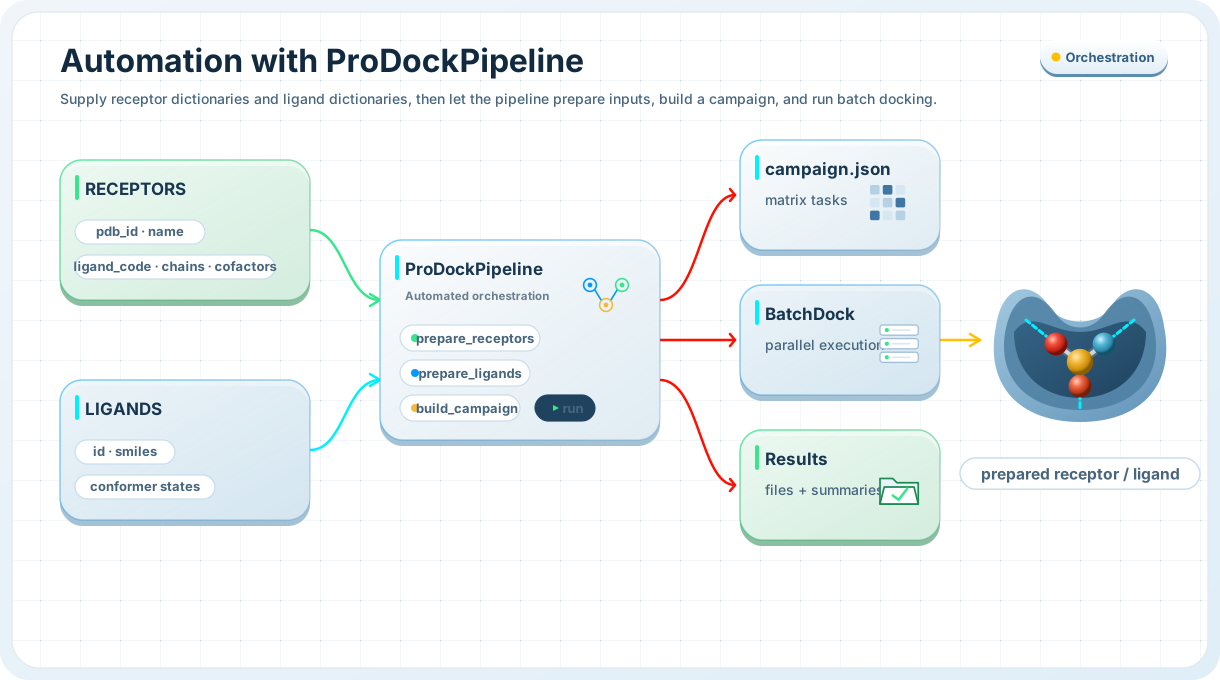
The automation layer is the highest-level workflow entry point in ProDock. It connects the lower-level stages into one reproducible campaign:
receptor preparation or prepared receptor reuse,
ligand preparation or prepared ligand reuse,
single- or multi-engine docking,
optional interaction extraction,
optional SQLite export.
The same workflow is exposed through two interfaces:
prodock()for Python usage,prodock --config ...orpython -m prodock --config ...for CLI usage.
Configuration patterns#
The CLI supports two main input patterns:
all-in-one JSON — one file contains project directory, receptor input, ligand input, and run options
split JSON — the main config contains project/run options, while receptor and ligand definitions are passed separately through
--receptor-jsonand--ligand-json
This makes the automation layer suitable both for simple tutorial runs and for larger projects where receptor and ligand collections are maintained separately.
Override precedence#
Configuration values are resolved in this order:
--configprovides the base payload--receptor-jsonoverrides embeddedreceptorsfrom--config--ligand-jsonoverrides embeddedligandsfrom--configexplicit CLI flags override all JSON-derived values
This means you can keep a stable base config and vary engines, compute settings, or workflow flags from the terminal without editing the JSON files.
Input modes#
After config merging, the final workflow must contain exactly one receptor mode and exactly one ligand mode.
Supported receptor modes:
receptorsfor raw receptor specificationsprepared_receptorsfor already prepared receptor inputs
Supported ligand modes:
ligandsfor inline ligand dictionariesligand_dirfor a directory of prepared ligand files
This keeps the high-level workflow unambiguous while still supporting both raw and preprocessed campaigns.
All-in-one JSON#
Single-file campaign config
Keep receptors, ligands, and run options together in one JSON file.
The simplest automation layout is one file containing everything:
{
  "project_dir": "Demo",
  "receptors": [
    {
      "pdb_id": "4WKQ",
      "receptor_name": "EGFR_4WKQ",
      "ligand_code": "IRE",
      "chains": ["A"],
      "cofactors": []
    }
  ],
  "ligands": [
    {
      "id": "erlotinib",
      "smiles": "COCCOc1cc2c(ncnc2cc1OCCOC)Nc1cccc(c1)C#C"
    },
    {
      "id": "gefitinib",
      "smiles": "COc1cc2ncnc(c2cc1OCCCN1CCOCC1)Nc1ccc(c(c1)Cl)F"
    }
  ],
  "config": {
    "engines": ["qvina", "qvina-w"],
    "extract_interaction": true,
    "save_to_database": true,
    "db_name": "demo.db",
    "cpu": 8,
    "n_jobs": 8,
    "exhaustiveness": 16,
    "n_poses": 20
  }
}
Run it with either form:
prodock --config run.json
python -m prodock --config run.json
This is the most convenient pattern for tutorials, notebooks, and compact project runs.
Split JSON input#
Split config, receptor, and ligand files
Keep project settings separate from receptor and ligand collections.
For larger campaigns, receptor and ligand definitions can live in separate files.
Example config.json:
{
  "project_dir": "Demo",
  "config": {
    "engines": ["qvina", "qvina-w"],
    "extract_interaction": true,
    "save_to_database": true,
    "db_name": "demo.db",
    "cpu": 8,
    "n_jobs": 8,
    "exhaustiveness": 16,
    "n_poses": 20
  }
}
Example receptor.json:
{
  "receptors": [
    {
      "pdb_id": "4WKQ",
      "receptor_name": "EGFR_4WKQ",
      "ligand_code": "IRE",
      "chains": ["A"],
      "cofactors": []
    }
  ]
}
Example ligand.json:
{
  "ligands": [
    {
      "id": "erlotinib",
      "smiles": "COCCOc1cc2c(ncnc2cc1OCCOC)Nc1cccc(c1)C#C"
    },
    {
      "id": "gefitinib",
      "smiles": "COc1cc2ncnc(c2cc1OCCCN1CCOCC1)Nc1ccc(c(c1)Cl)F"
    }
  ]
}
Run with split inputs:
prodock \
  --config config.json \
  --receptor-json receptor.json \
  --ligand-json ligand.json
If --receptor-json or --ligand-json is not supplied, the CLI falls back
to embedded receptors or ligands from --config.
Python automation#
prodock()
Run the same automated workflow directly from Python.
Use prodock() when you want the fastest end-to-end workflow from Python.
Minimal run:
from prodock import prodock

result = prodock(
    "Quick_Run",
    receptors=RECEPTORS,
    ligands=LIGANDS,
)

print(result.campaign_json)
Interaction-aware run:
from prodock import prodock

result = prodock(
    "Interaction_Run",
    receptors=RECEPTORS,
    ligands=LIGANDS,
    engines=["qvina", "qvina-w"],
    extract_interaction=True,
)

print(result.pose_df.head())
print(result.merged_df.head())
Database-focused run:
from prodock import prodock

result = prodock(
    "Database_Run",
    receptors=RECEPTORS,
    ligands=LIGANDS,
    engines=["qvina", "qvina-w"],
    extract_interaction=True,
    save_to_database=True,
    db_name="results.db",
)

print(result.db_path)
Prepared-input modes#
Prepared receptors and ligand directories
Skip preprocessing when docking-ready inputs already exist.
Automation also supports already prepared inputs.
Prepared receptor mode:
{
  "project_dir": "DemoPrepared",
  "prepared_receptors": [
    {
      "receptor_id": "4WKQ",
      "receptor_pdbqt": "prepared/4WKQ/4WKQ.pdbqt",
      "center": [5.0, 10.0, 12.0],
      "size": [20.0, 20.0, 20.0]
    }
  ],
  "ligands": [
    {
      "id": "erlotinib",
      "smiles": "COCCOc1cc2c(ncnc2cc1OCCOC)Nc1cccc(c1)C#C"
    }
  ],
  "config": {
    "engines": ["qvina"],
    "save_to_database": true
  }
}
Ligand directory mode:
{
  "project_dir": "DemoLigandDir",
  "receptors": [
    {
      "pdb_id": "4WKQ",
      "receptor_name": "EGFR_4WKQ",
      "ligand_code": "IRE",
      "chains": ["A"],
      "cofactors": []
    }
  ],
  "ligand_dir": "prepared_ligands",
  "config": {
    "engines": ["qvina", "vina"],
    "extract_interaction": false
  }
}
Python prepared-input example:
from prodock import prodock

result = prodock(
    "Prepared_Run",
    prepared_receptors=[
        {
            "receptor_id": "4WKQ",
            "receptor_pdbqt": "Prepared_Run/4WKQ/filtered_protein/4WKQ.pdbqt",
            "center": (2.865, 193.257, 21.367),
            "size": (27.091, 27.091, 27.091),
        }
    ],
    ligand_dir="Prepared_Run/ligands",
    engines=["qvina"],
    extract_interaction=True,
    save_to_database=True,
    db_name="prepared.db",
)

print(result.db_path)
CLI overrides#
Override config values from the terminal
Keep stable defaults in JSON and vary runtime behavior with CLI flags.
Override engines and compute settings:
prodock \
  --config config.json \
  --receptor-json receptor.json \
  --ligand-json ligand.json \
  --engines qvina smina vina \
  --cpu 8 \
  --n-jobs 8 \
  --exhaustiveness 16 \
  --n-poses 20
Boolean workflow flags support both positive and negative forms:
prodock --config run.json --progress
prodock --config run.json --no-progress

prodock --config run.json --extract-interaction
prodock --config run.json --no-extract-interaction

prodock --config run.json --save-to-database
prodock --config run.json --no-save-to-database

prodock --config run.json --replace
prodock --config run.json --no-replace
Interaction-focused overrides:
prodock \
  --config run.json \
  --extract-interaction \
  --interaction-batch-size 8 \
  --interaction-n-jobs 4 \
  --interaction-progress \
  --include-fingerprint-columns \
  --include-interaction-events
Use the InteractionProfiler backend explicitly:
prodock \
  --config run.json \
  --extract-interaction \
  --use-interaction-profiler
Database-focused overrides:
prodock \
  --config run.json \
  --save-to-database \
  --db-name demo.db \
  --replace \
  --replace-interactions
Validation and reproducibility#
Validate, inspect, and save the merged config
Check the final resolved workflow before running the campaign.
The CLI can validate merged inputs without running docking:
prodock \
  --config config.json \
  --receptor-json receptor.json \
  --ligand-json ligand.json \
  --validate-only
Print the final merged effective configuration:
prodock \
  --config config.json \
  --receptor-json receptor.json \
  --ligand-json ligand.json \
  --print-effective-config
Write the effective configuration to disk:
prodock \
  --config config.json \
  --receptor-json receptor.json \
  --ligand-json ligand.json \
  --effective-config-json effective.json
Write a compact run summary:
prodock \
  --config run.json \
  --summary-json summary.json
Show a traceback on errors:
prodock --config run.json --traceback
These options are especially useful for debugging configuration merges, keeping reproducible campaign records, and capturing exactly what was executed.
Path resolution notes#
Relative paths inside each JSON file are resolved relative to the directory of that JSON file.
Relative paths passed to:
--summary-json--effective-config-json
are resolved relative to the main --config directory.
Minimal end-to-end example#
Run one complete automated campaign from split JSON files
prodock \
  --config config.json \
  --receptor-json receptor.json \
  --ligand-json ligand.json \
  --engines qvina qvina-w \
  --extract-interaction \
  --save-to-database \
  --db-name results.db \
  --effective-config-json effective.json \
  --summary-json summary.json
See also#
Core API — full reference for the high-level automation entry points
Preprocess — prepare inputs explicitly before docking
Dock — run single or batch docking directly
Postprocess — analyze docking outputs after the campaign
Database — store and query campaigns in SQLite